
In this post, I’ll walk through some of the standout features in Veeam Data Platform v13 that make backup management smarter and more secure. We will look at the new daily AI-powered summary, proactive backup scans with threat detection, and improved Veeam ONE integration for reporting. I will also touch on the Veeam Deployment Kit and how it enables passwordless authentication.
Daily AI-Powered Summary
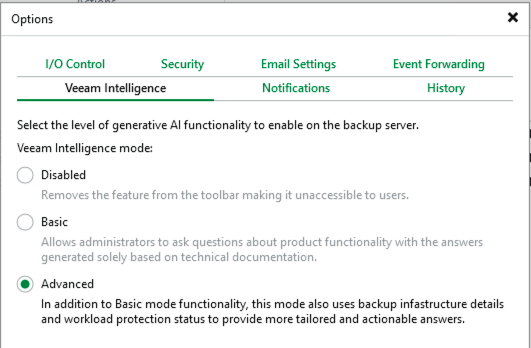
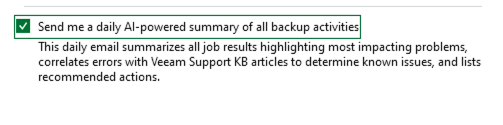
Veeam now offers a consolidated daily summary report for backup activities, accessible via the main menu under Email Settings (Main menu -> Options -> Email settings->Send me a daily AI-powered Summary of all backup activities).
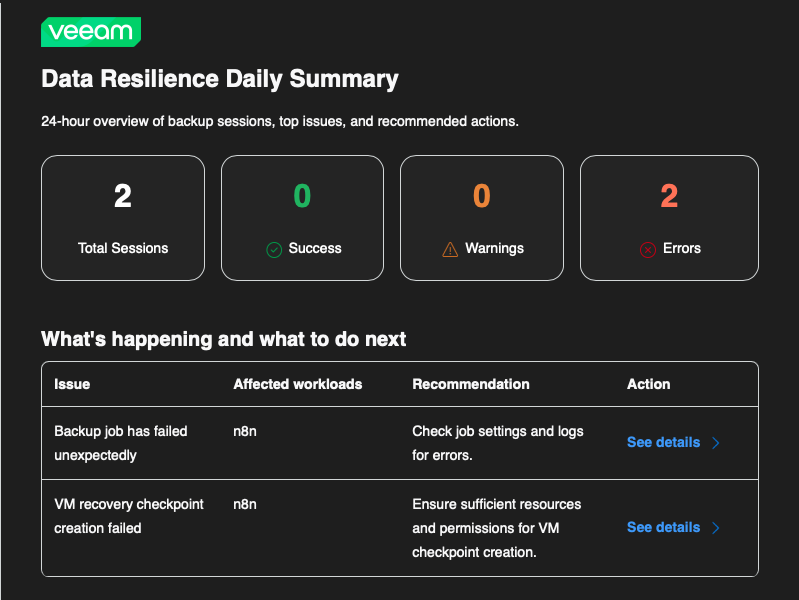
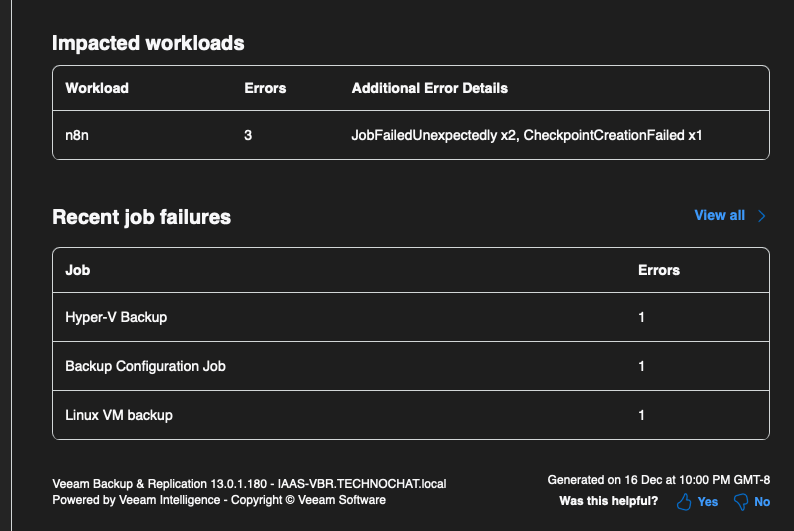
This report isn’t just a log – it includes references to relevant Knowledge Base articles and user guides to address any detected issues directly. To activate this feature, advanced mode for Veeam Intelligence must be enabled.
The sample reports are functional: clicking “See details” takes you straight to the applicable KBs or guides for troubleshooting.
Proactive Backup Scan & Threat Detection
Veeam now supports proactive backup scanning – if potential malware is detected during a backup, the system can flag it, trigger an automatic scan, allow you to mark it clean, and auto-resolve the event as needed.
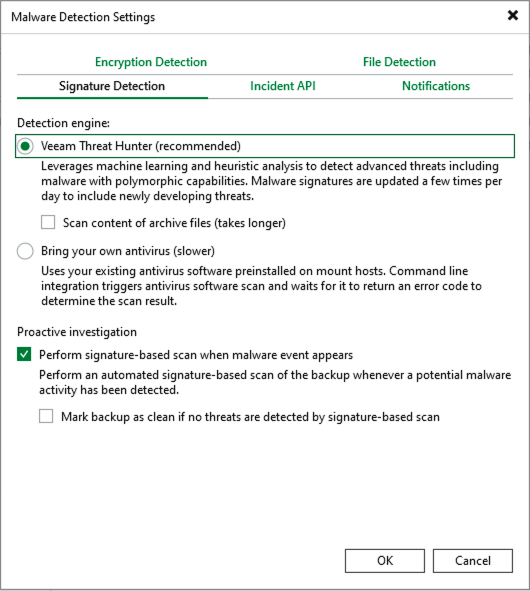
This proactive scanning isn’t limited to Windows; it now covers Linux workloads, both VM-based and agent-based.The threat detection engine (Veeam Threat Hunter) also operates with Linux workloads and cloud machines, enabling you to scan backups created by Veeam Backup for Azure, AWS and GCP.
For testing with Linux workloads, I added a new file suspicious file extension & Enabled file system activity analysis under “File Detection.”
When a backup is performed, a known malware extension will demonstrate the detection workflow.

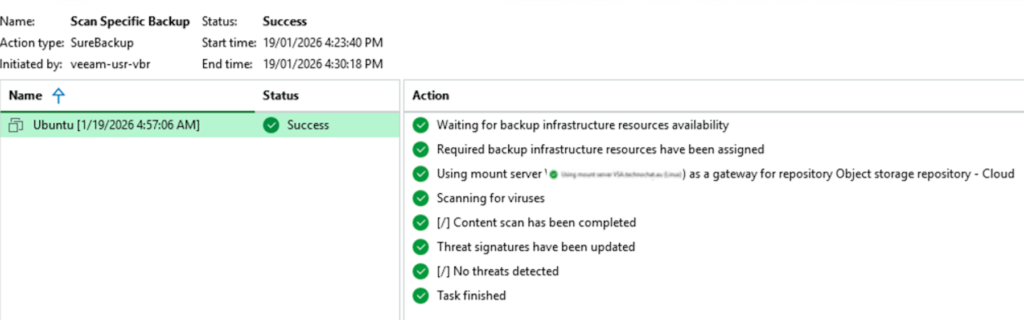
What’s even more interesting is that, with proactive investigation enabled, it automatically kicks off a SureBackup Lite job and runs a scan using Veeam Threat Hunter.
Enhanced integration with VeeamONE
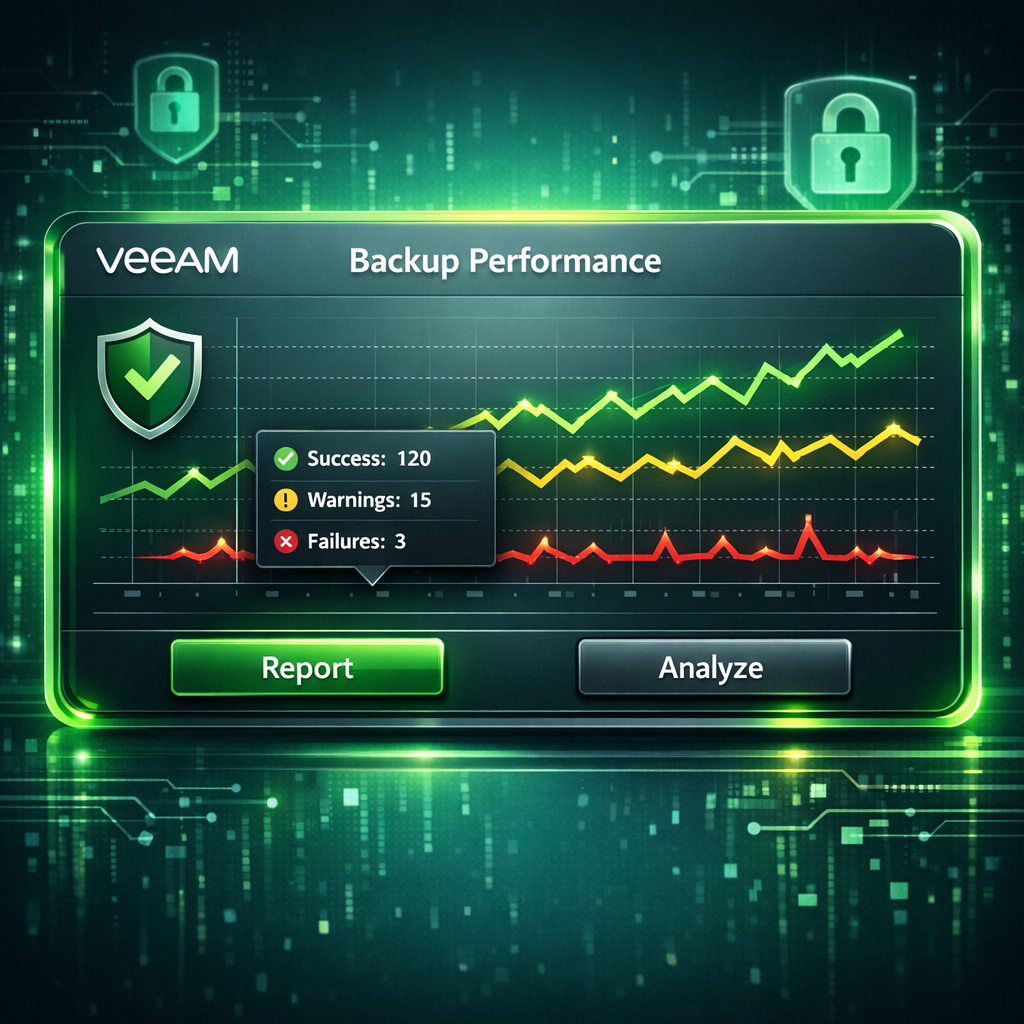
Another great enhancement to the single platform story is that you can now generate Veeam ONE reports directly from the Veeam Backup & Replication console.
To enable this, you’ll need VDP Advanced and either Veeam Backup & Replication (traditional Windows) or the Veeam Backup appliance added to Veeam ONE as a managed server.
Once that’s set up, head to the Analytics section, where you can access the report catalog and generate reports.
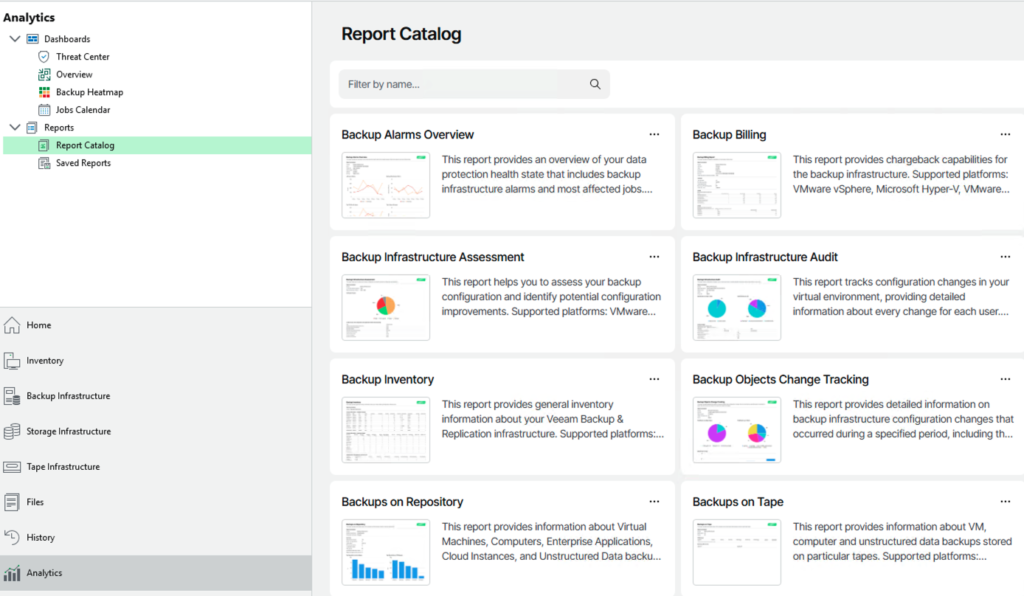
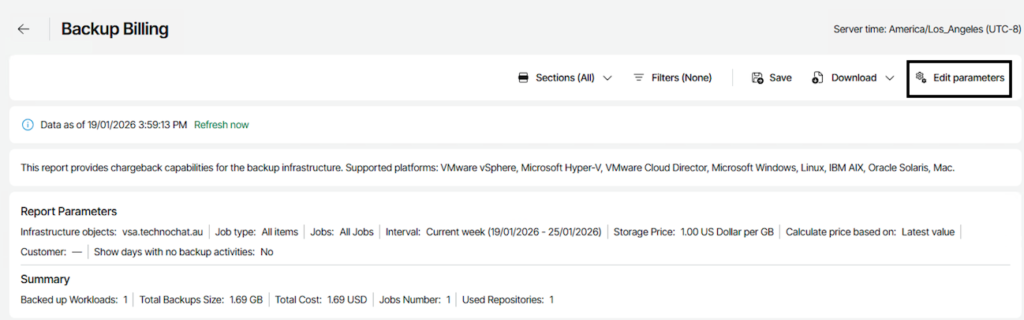
What stands out to me are two things: first, the ability to preview reports in real time and tweak parameters before exporting; second, you can save reports for future use. In my next blog, I’ll dig deeper into the kind of analytics you can pull from these saved reports.
Veeam Deployment Kit: Passwordless Authentication
The Veeam Deployment Kit introduces certificate-based authentication for passwordless access. Installation is straightforward – there’s an included shell script for automated setup, or you can go manual if you prefer.
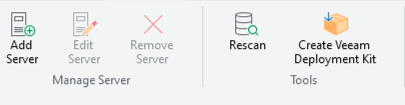
When the deployment kit is used with managed servers (like mount servers, guest interaction proxies, etc.), services run as local system accounts. It’s available for Linux and comes preinstalled with all JeOS deployments.
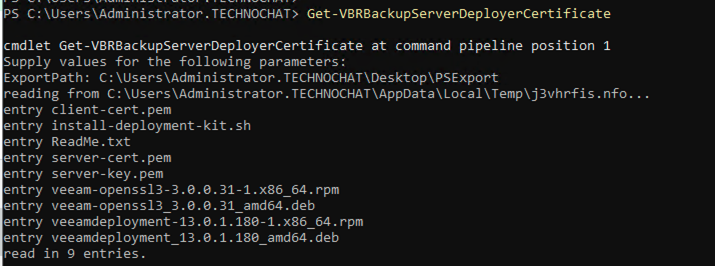
To retrieve a current deployment kit certificate, use the Get-VBRBackupServerDeployerCertificate command. Be aware: generating a new certificate will invalidate previous ones.
These new features make it easier than ever to stay ahead of threats and simplify backup management, marking a significant step forward in smarter, more resilient data protection.