
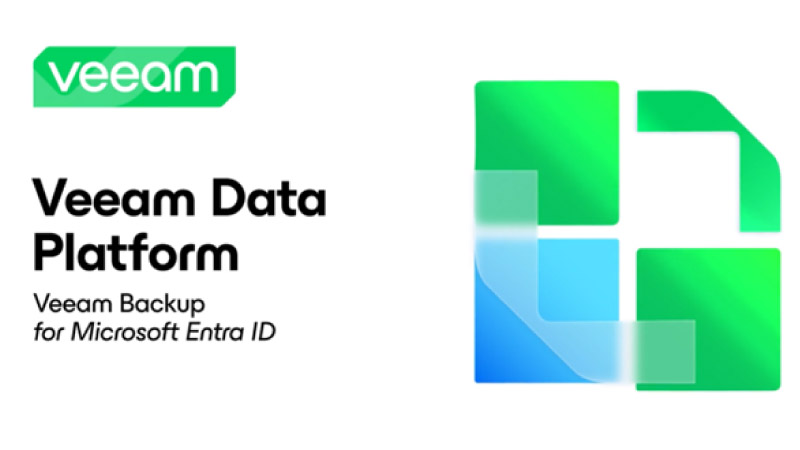
With the release of Veeam v12.3, Veeam can help organizations protect their Entra ID.
Entra ID is Microsoft’s cloud-based identity and access management service platform that provides access to various resources. These resources may include everyday SaaS applications like Microsoft 365, Dynamics 365, the Azure portal, or any SaaS application that can interact with it.
Why Use Entra ID?
The most common use case for Entra ID is to enable Single Sign-On (SSO). An app developer can easily build an app that connects to Entra ID, allowing users to leverage their existing credentials instead of creating a separate credential set for each application, thereby reducing password fatigue.
Furthermore, with compliance being a significant concern, it becomes easier for administrators to provision user accounts and manage them in the event of any changes or the need to revoke permissions.
This blog post will delve into the key features and functionalities of Veeam’s backup capabilities for Entra ID.
Why we should protect Entra ID
Similar to any “as a service” model, the provider, in this case Microsoft, will take care of the underlying infrastructure, but the configuration and data are the user’s responsibility.
In today’s SaaS world, organizations on average use a minimum of 80 SaaS applications. These applications are predominantly built with Entra ID as their identity provider and use service principals to get authenticated and authorized to use other resources.
A mass deletion or tampering of app registrations or service principals (whether malicious or by mistake) can take down user access to these business-critical applications. Additionally, protecting audit logs and sign-in logs is essential for compliance reasons. These logs provide a record of activities and access, which is crucial for monitoring, detecting anomalies, and ensuring adherence to regulatory requirements.
Every change in the Entra ID is logged under the Entra ID Audit logs, and all sign-in related events, whether user sign-ins or application sign-ins, are logged under the Sign-In logs. By default, Microsoft stores these logs for a period of 7 to 30 days, depending on your Entra ID license.

However, due to business requirements such as compliance, investigations, audits, etc., you may need to keep them for a longer period. In general, this time period ranges from 6 months to 7 years, which can only be achieved by backing up those logs.
Backup Overview
You can create a backup job per tenancy, and you have to back up all the components such as users, groups, administrative units, roles, and applications. You cannot pick and choose, as these objects are relational and one may not be useful without the other. For example, if you choose to back up groups but not users, there is no way to restore their relationship. Also, you can’t have a single tenancy backed up by two jobs.
The Entra ID tenant data are stored in a Postgres database, and the logs backup are stored in the Veeam repository (any repository supported by Veeam’s NAS engine).
If you are a service provider backing up multiple tenancies or an organization with multiple tenancies, you can be assured of data separation as each tenancy will get its own database.
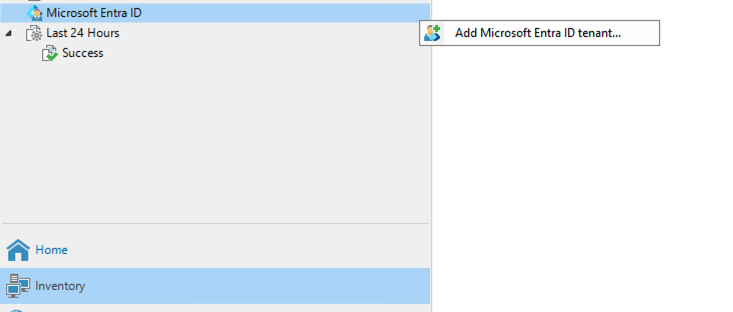
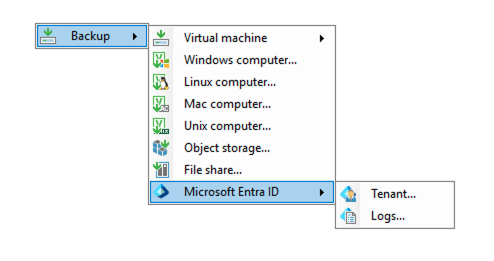
Note: The Postgres database used to store Entra ID tenant backups wont be visible in the Veeam console Backup Infrastructure section.
What can be restored with Veeam
With Veeam, an organization can restore users, groups, administrative units, roles, applications, and service principals along with their properties. Additionally, one can also restore audit and sign-in logs from the Entra ID logs backup into their Entra ID environment.
Users
User accounts are a fundamental component of any Identity Provider (IDP) solution. Veeam Backup for Entra ID offers a robust solution to back up user accounts and their attributes. Users have the flexibility to restore the entire user account or only the changed property (metadata)
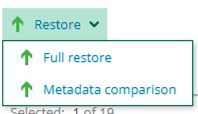
.
The Veeam Entra ID Restore Explorer enables you to compare changed attributes and restore only the specific components that have been modified, rather than restoring the entire user account. In the example below, I changed the user’s surname, user type and changed the group membership. Veeam Explorer for Entra ID identify only those changes and restore them without restoring the restore.
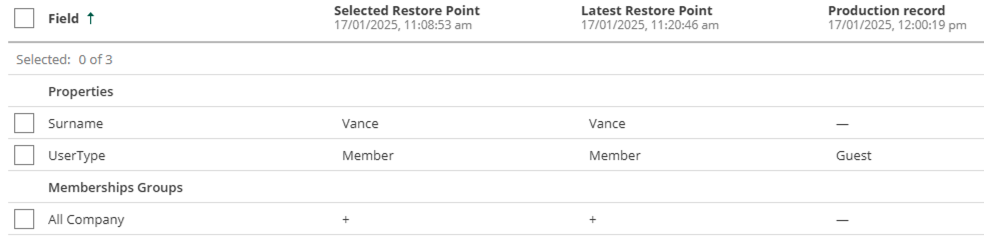
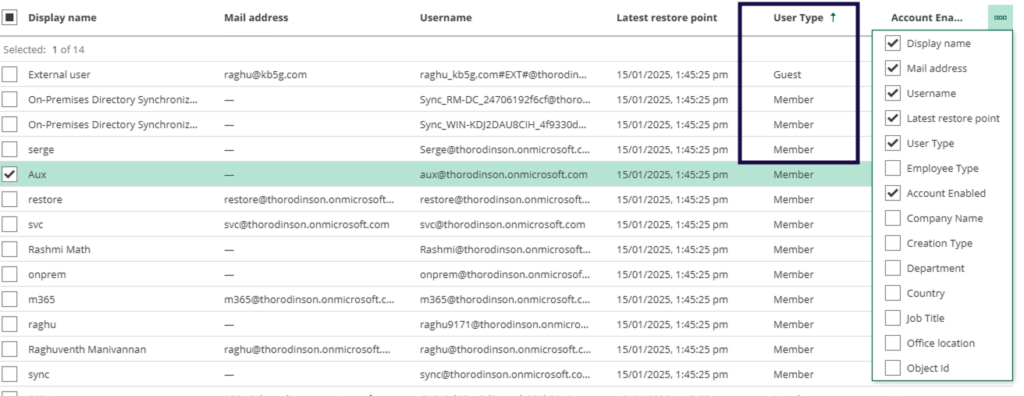
Another handy functionality is the ability to align users by user type, such as Guests and Members, allowing for easy search and identification of objects.
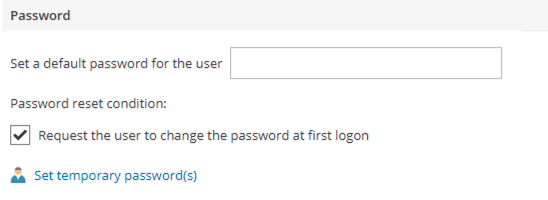
Furthermore, when performing full user restore you have the ability to set the user password.
Groups
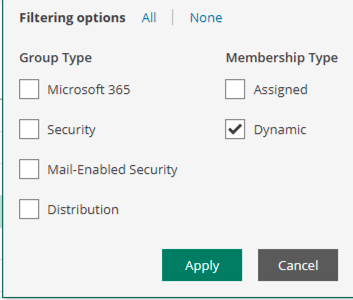
Veeam offers protection for both Microsoft 365 and Security groups, supporting both assigned and dynamic memberships. The restore UI is particularly user-friendly, allowing you to filter groups based on their membership type.
You have the option to restore the entire group or compare the metadata with the production environment and download the changes. For instance, if you have altered your dynamic membership from an OR logic to an AND logic, the restore wizard’s metadata comparison feature enables you to restore only that specific change. This is incredibly useful when your group membership behaves unexpectedly after a series of changes, allowing you to revert only the specific attribute you recently modified instead of restoring the entire group.
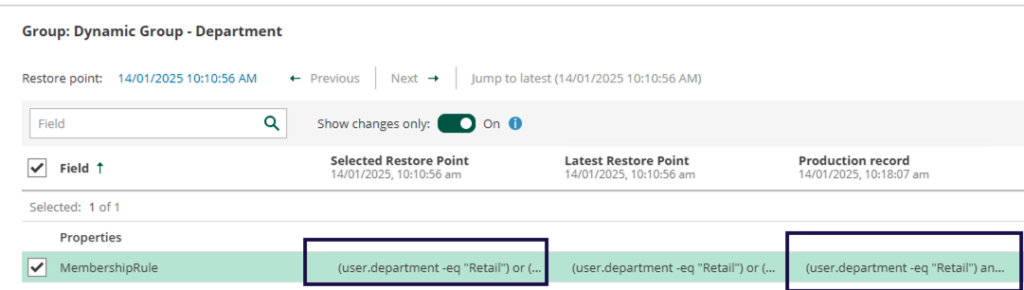
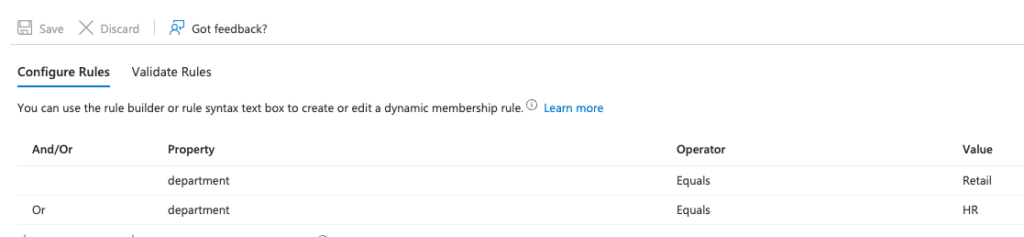
Additionally, performing a metadata restore ensures that the logic is restored accurately. It’s also worth noting that a full group restore will reinstate both assigned and dynamic group memberships.
Administrative Units
Administrative units are a crucial component of Entra ID, used to assign permission scopes. For example, if you want a helpdesk administrator to reset passwords for a specific group of people, you can add those users to an administrative unit and assign permissions accordingly. Without administrative units, the only other scope available for the helpdesk administrator role would be the entire tenancy.
A useful tip: if you add a group to an administrative unit, the permissions assigned to the administrative unit will not impact the members of the group.
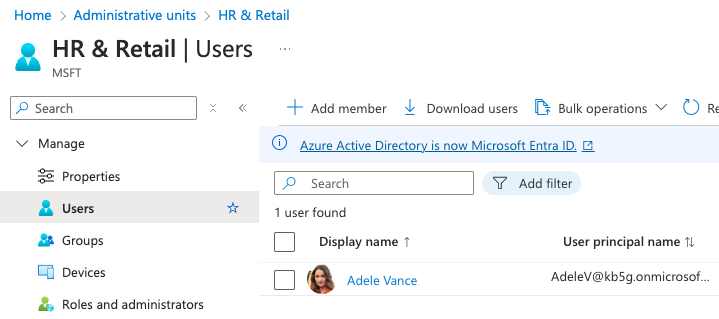
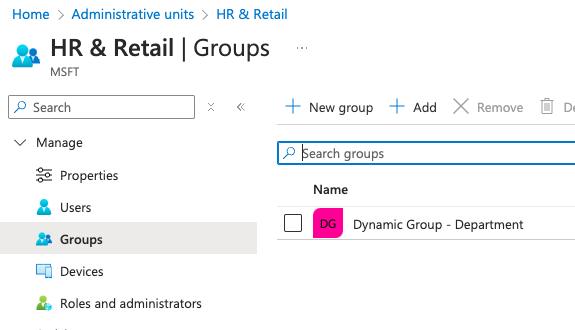
When it comes to Veeam backup for Entra ID, restoring an administrative unit also restores the users and groups added to it, along with the permissions assigned to the administrative unit.

Roles
A common question regarding roles is what types of roles Veeam can back up. Since the product focuses solely on Entra ID, the roles in question are Entra ID roles (such as global admin, SharePoint admin, etc.) and not Azure roles (like virtual machine administrator, Key Vault administrator, etc.).
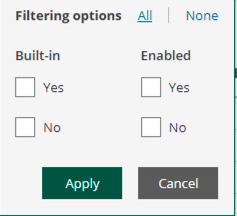
Veeam allows you to back up and restore both built-in and custom roles. You can even filter roles in the explorers based on role type, making it easier to manage and restore the necessary roles.
App Registration and Service Principle
App registration is a key component of Entra ID, allowing you to establish trust between your application and the Identity Provider (IDP), which in this case is Entra ID. Through app registration, you define the application’s permissions and create an application secret. This secret, along with the application ID, is used by the application to authorize itself to access resources.
When an app registration is created, it also generates a service principal. We are all familiar with the user principal, where a user account performs operations while logged into the portal. Similarly, when an application or service performs an operation, it is referred to as a service principal.
All the service principals available in your tenancy can be accessed under the Enterprise Applications section of Entra ID.
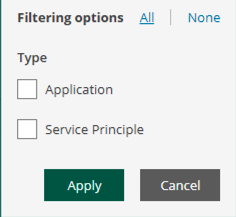
With Veeam Backup, you can protect both app registrations and service principals, enabling you to restore either or both.
For all the above-mentioned Entra ID object restores, there is an additional restore option available that I haven’t mentioned yet: restoring from the Recycle Bin.
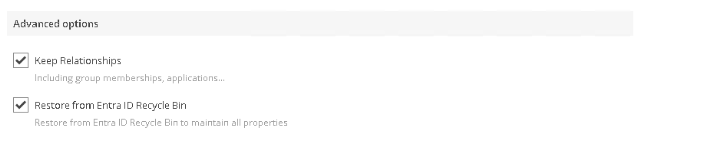
Entra ID usually holds the deleted objects in the Recycle Bin for a certain period of time. This allows organizations to recover accidentally deleted objects without needing to perform a full restore from backup. When restoring an entire object (without the Recycle Bin option), you are effectively recreating the object with a new object ID. However, when you use the Recycle Bin option, you are restoring the objects with the same object ID.
Why is this important?
I conducted a test with the Veeam Backup for Azure appliance. For those hearing about this product for the first time, it is Veeam’s backup solution designed to protect Azure workloads such as Azure VMs, databases, and file shares.
This product uses an app registration for authentication. Like any app registration, we authenticate to Entra ID with an app ID and client secret.
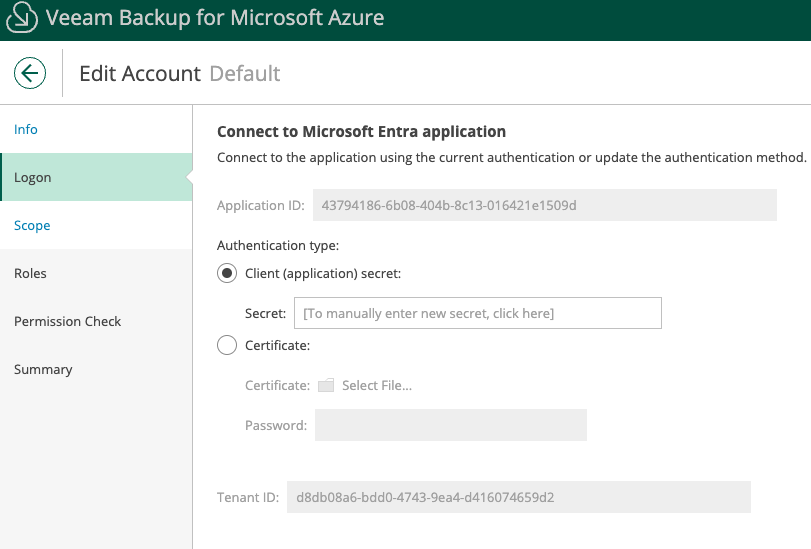
When I deleted this app and restored it without using the Recycle Bin option, it recreated the app with a different ID and no secret, effectively breaking the appliance’s connectivity to Azure.

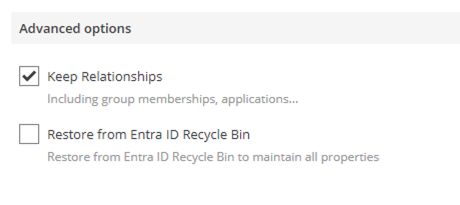
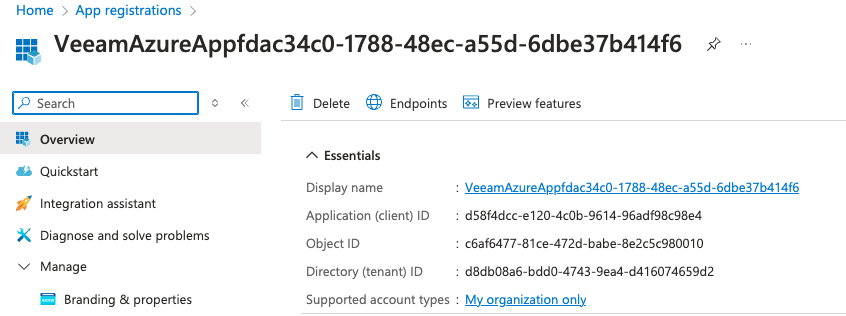
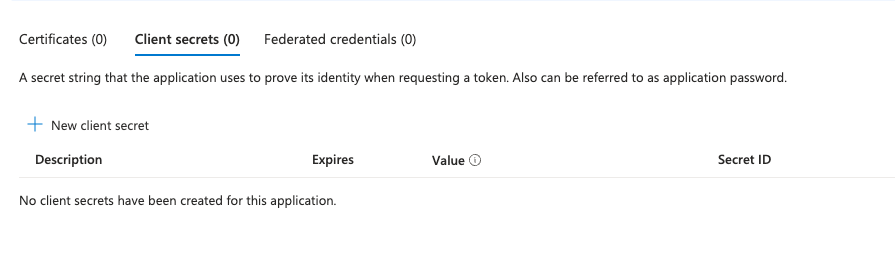
However, when I restored using the Recycle Bin option, the object was restored with the same app ID and secret, allowing the backup to continue without any disruptions.
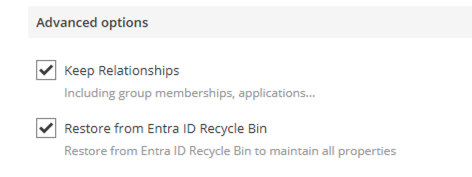
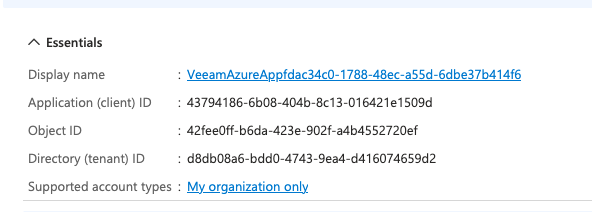
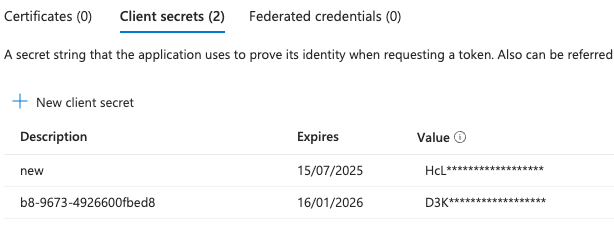
The idea behind this exercise is to understand how disruptive a change to app registration can be. In this case, it was a simple application that I could easily recreate, but this could be a disastrous event if it involved a complex app or if it happened to a large number of apps.
Logs
In addition to protecting Entra ID objects, you can also safeguard and recover your Audit and Sign-In logs. As mentioned earlier this is crucial for maintaining a secure and compliant environment.
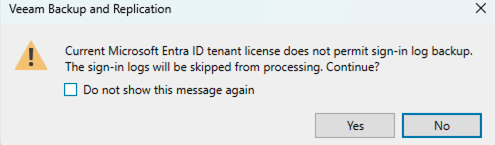
The logs backup job is a separate task from object-based jobs. It’s important to note that while these logs are available in the free version of Entra ID, you need at least a P2 license to access them via the Graph API for backup purposes. If not, you might encounter a warning when creating the backup job,
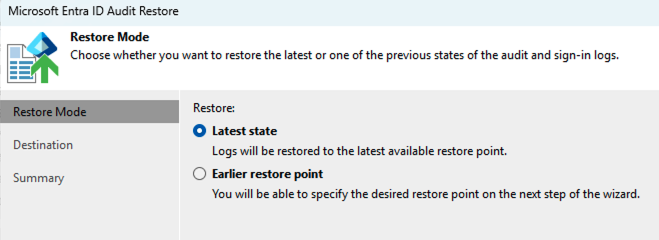
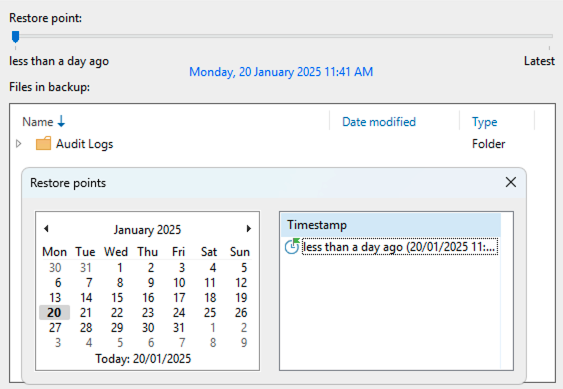
During the restore process, the Explorer allows you to restore either the entire folder or individual logs with granularity.

Note: This section of Veeam user guide lists out the supported EntraID object properties.
Conclusion
Being the first version of the product, Veeam Backup for Entra ID protects your organization’s identity objects along with the logs needed for compliance and security purposes. This feature is integrated into Veeam Backup and Replication and is available under Veeam’s universal licensing.
Please check out the part 2 of this blog that covers Conditional access backup added in VDP version 12.3.1