
This is a quick how to blog on how to backup Veeam Backup for Microsoft 365 server with Veeam Backup and Replication.
Why?
The original use case for this functionality was to achieve a 3-2-1 backup strategy for VB365 setups using local repositories. Over time, Veeam introduced support for object storage (since v4) and then built-in functionality for backup copies. However, for setups with on-prem VB365 repositories, this remains the only choice.
So, why is this important now? It’s because customers and service providers are moving to Veeam’s SaaS offering for Microsoft 365 backups, known as Veeam Data Cloud (VDC) for M365. Before moving to VDC, admins can safely perform a one-time backup of their on-prem VB365 components to object storages such as Veeam Vault. This backup can be used for historical restores and compliance purposes, while new restore points are created in VDC M365.
Backup
We can either perform a Virtual machine based backup (agentless) or utilize Veeam agent for Windows (managed by Veeam Backup and replication). The later is the only the only way if Veeam Backup for M365 repository is located on a physical windows server.
How to create Windows Agent Job
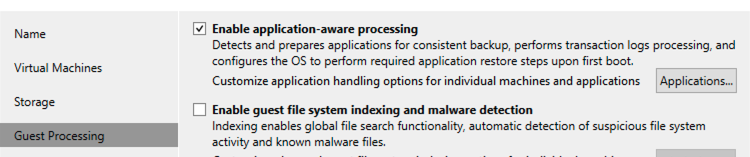
In both the above backup jobs, the most important settings to enable is application aware processing.
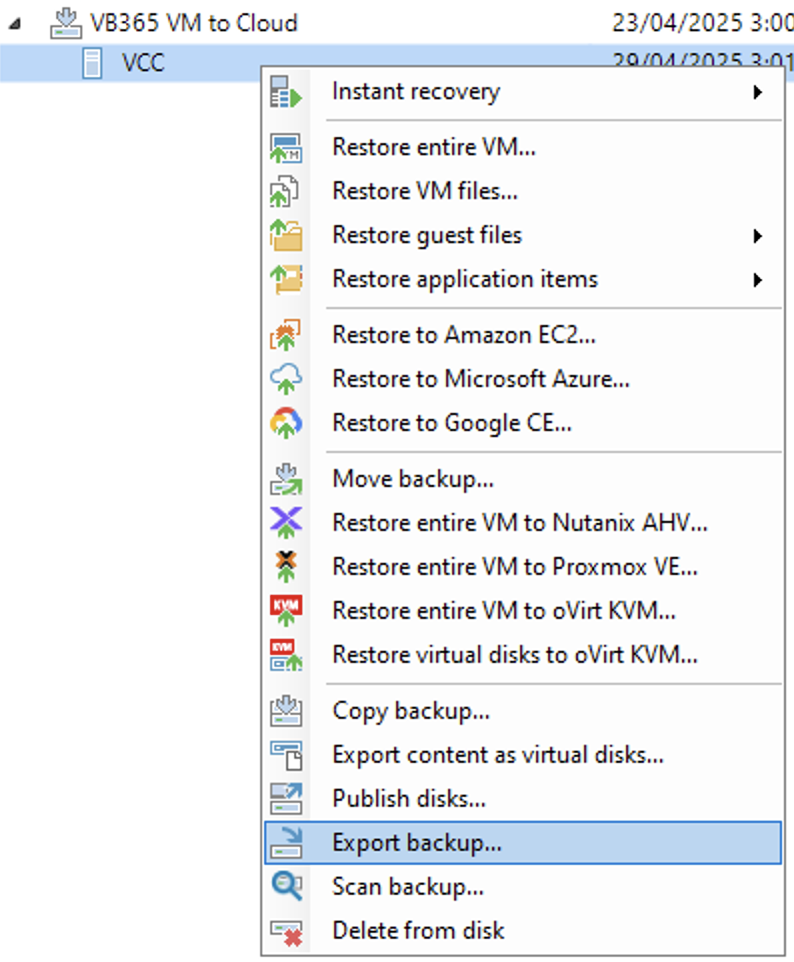
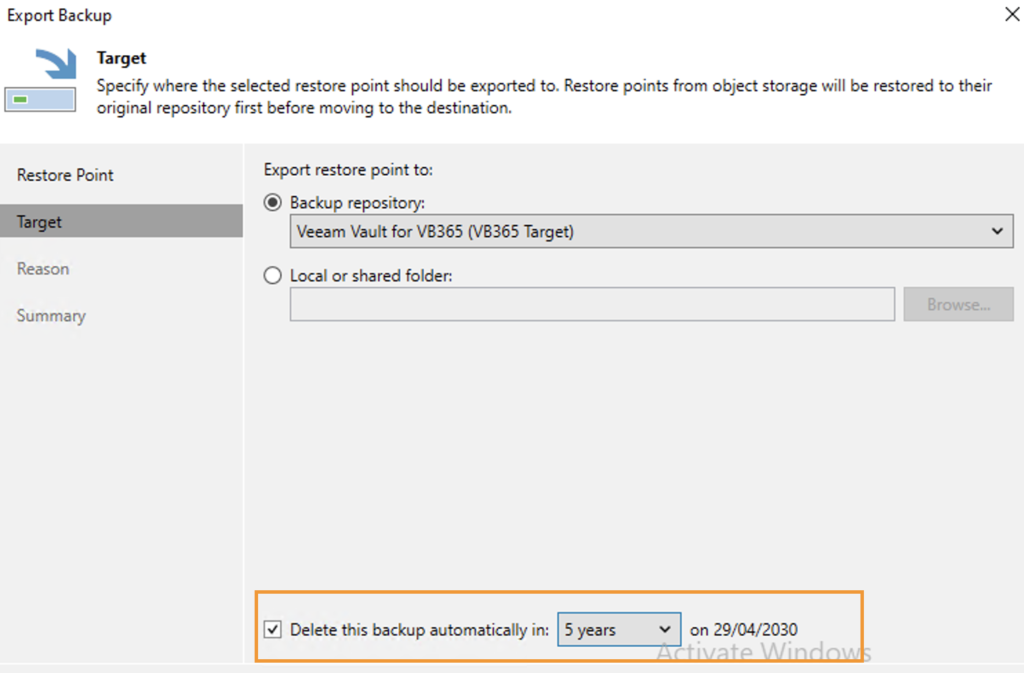
It also worth considering the Export backup option, as it allows you to specify the retention period for the exported backup, ensuring you know how long the data will be retained.
Restore
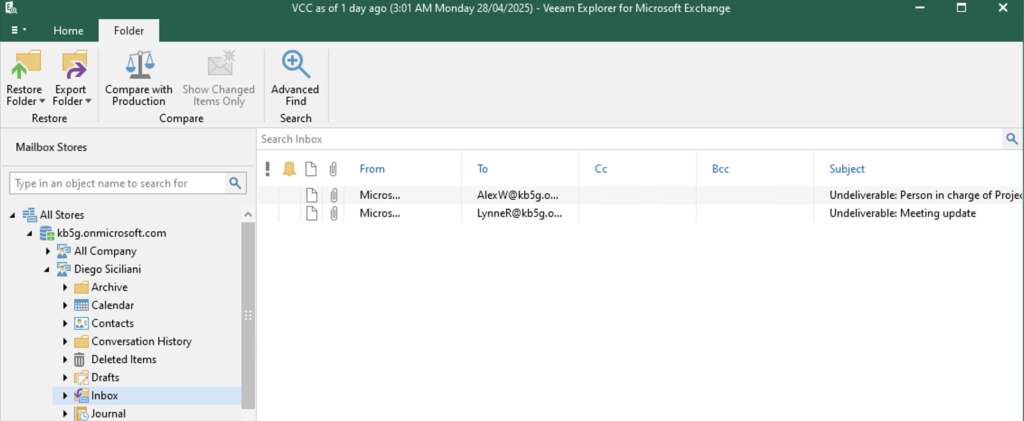
When performing VM based backup, it is possible to perform application aware processing directly from Veeam Backup and replication console. Clicking on the relevant component such as exchange, sharepoint, Onedrive and Teams, Veeam will open the specific explorers to perform application item restore.
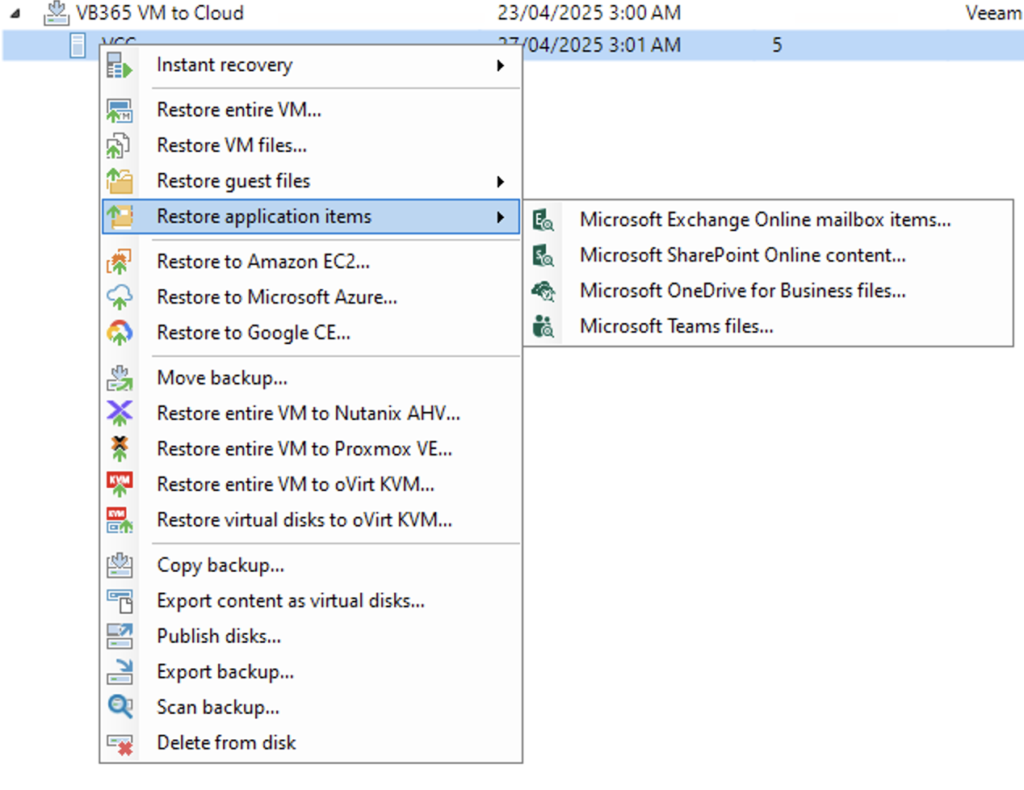
This can be done against the exported backups too.

Restore for Agent based backups
To restore from the agent-based backup (also for export of agents’ backups), there are a few additional steps we need to follow.
- Start the File explorer
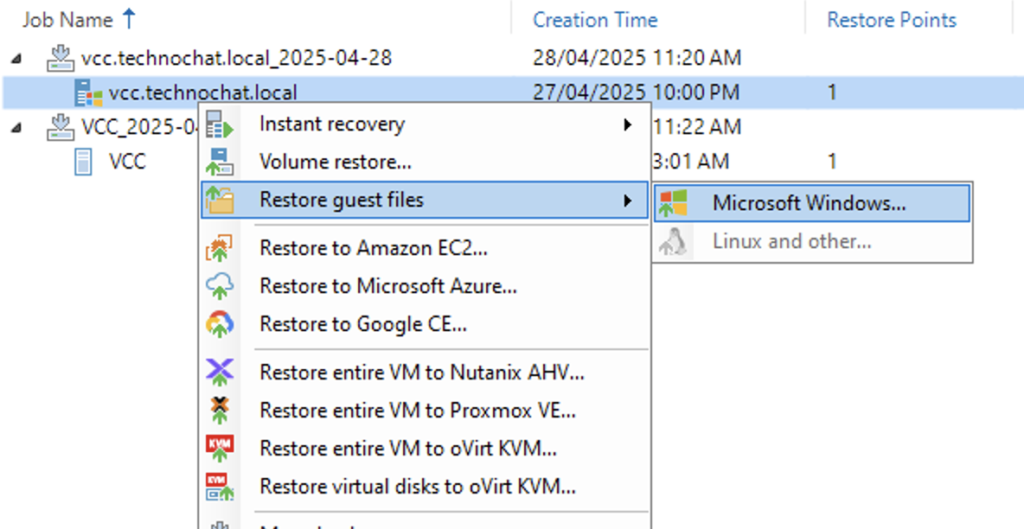
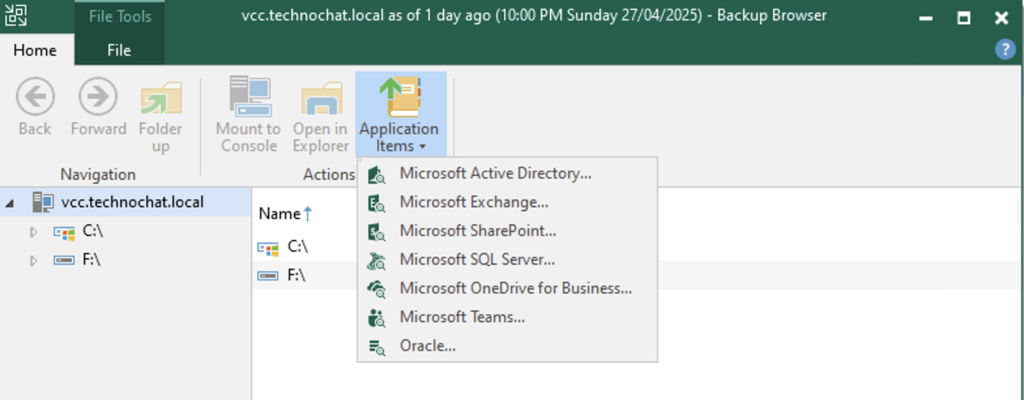
- In the File explorer, open Application explorer from the top ribbon
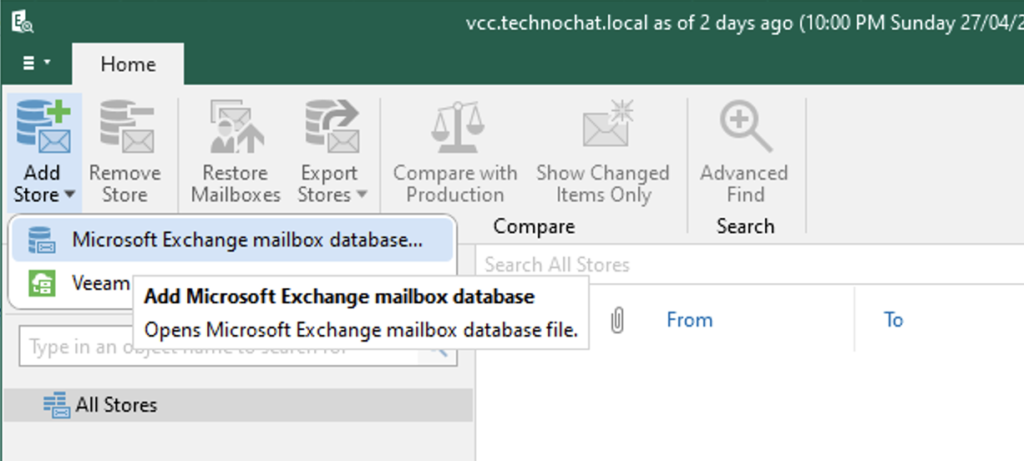
- In the Application explorer (say exchange explorer), click on Add store -> Microsoft Exchange mailbox database
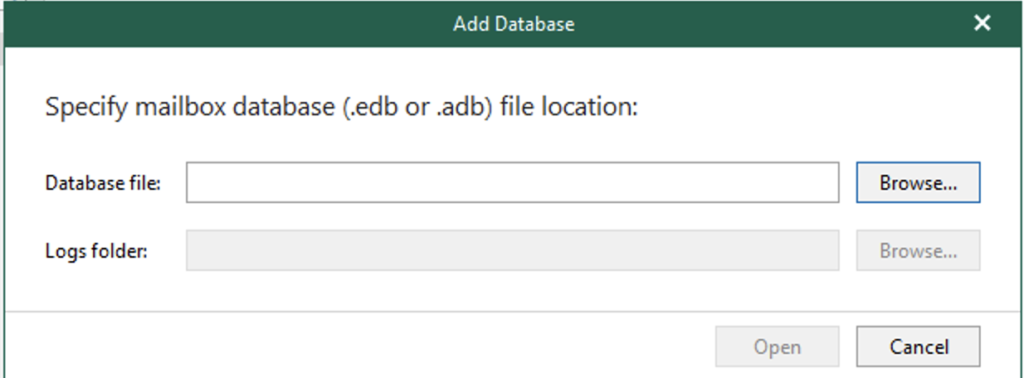
- In the add database wizard, click browse and browse to the FLR mounted location and select one of the adb files from the repository.
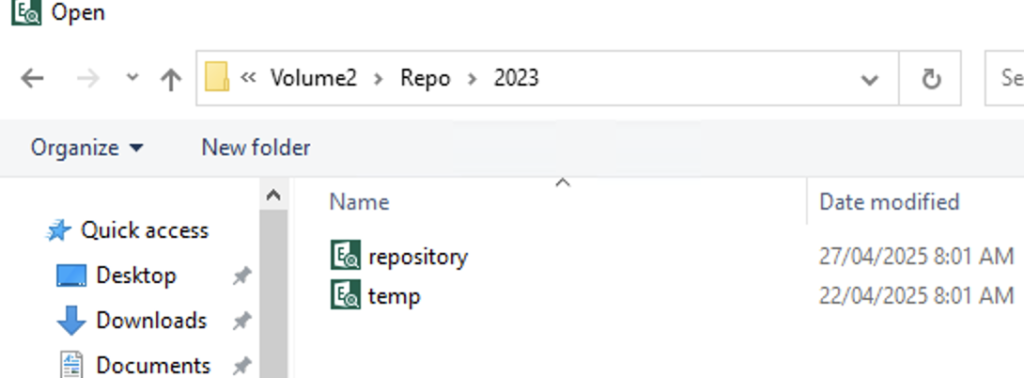
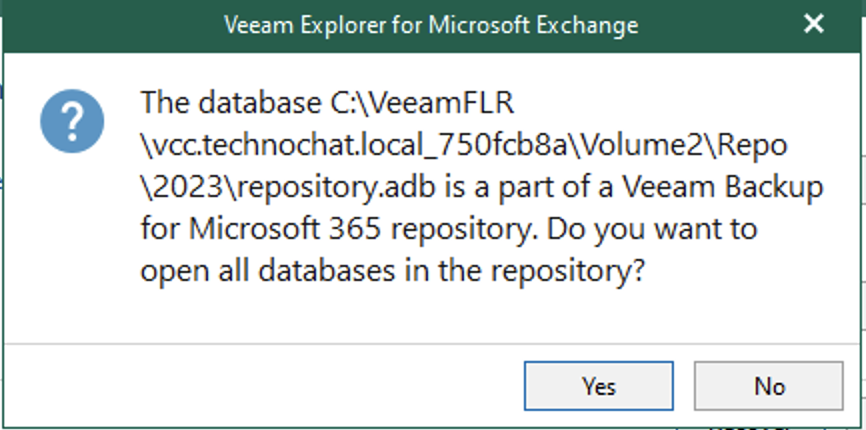
- When you select one of the database Veeam will ask whether you want to open all the repository databases associated with it. Select Yes
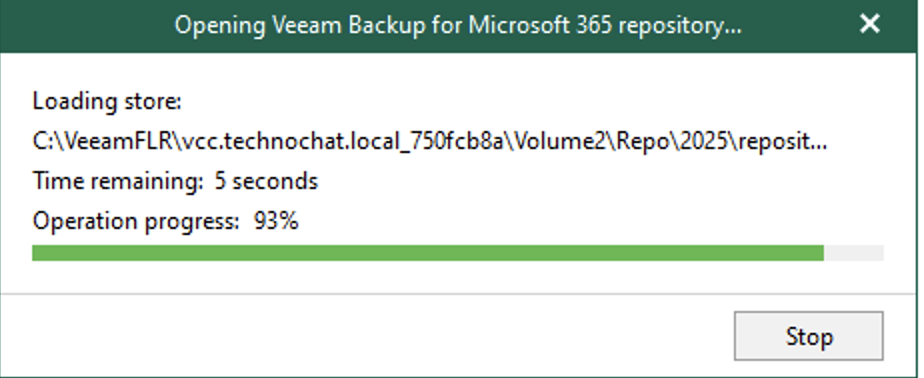
- Now you can restore any application items
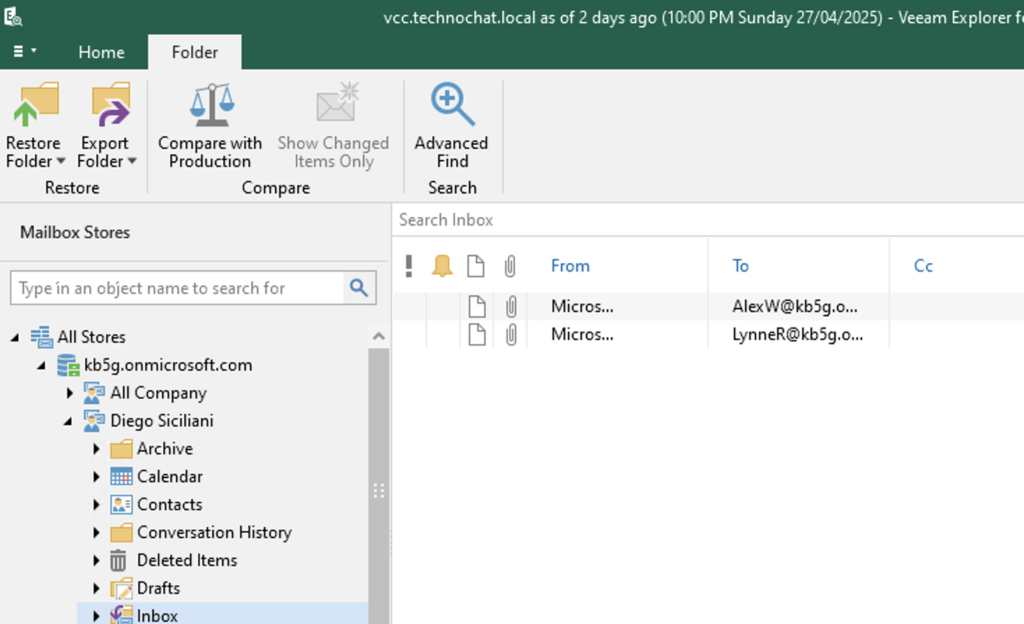
Instant VM Restore
If you look at the above restore use cases, I could only restore to the times when VBR backups were made, not VB365 backups. Even if you have VB365 backups for 5 years, if you only have a week’s worth of VBR restore points, you can’t restore to a specific restore point of a VB365 backup using this method.
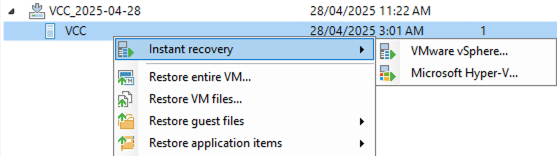
To do that, you need to
- Instant restore the VB365 server
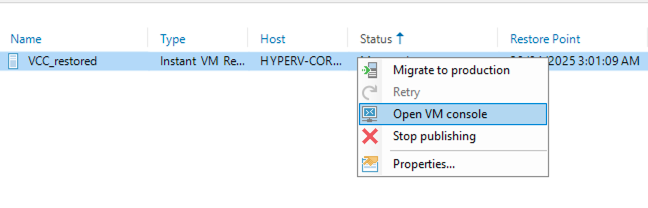
- Connect to the VB365 server using Open console option in VBR or RDP into the server
- Perform restore as you would do on a VB365 server
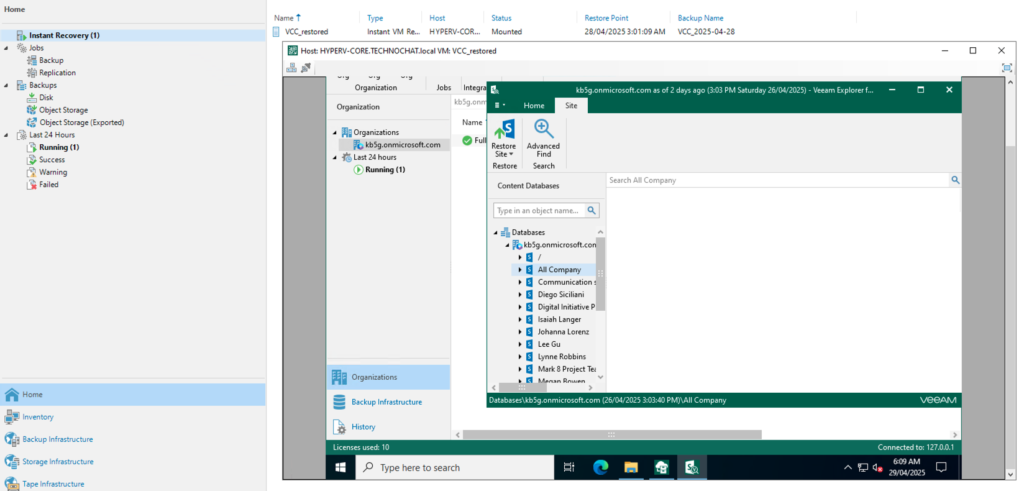
In summary, backing up your VB365 server to the cloud and performing application restores ensures your data is secure and easily recoverable.