
Intent
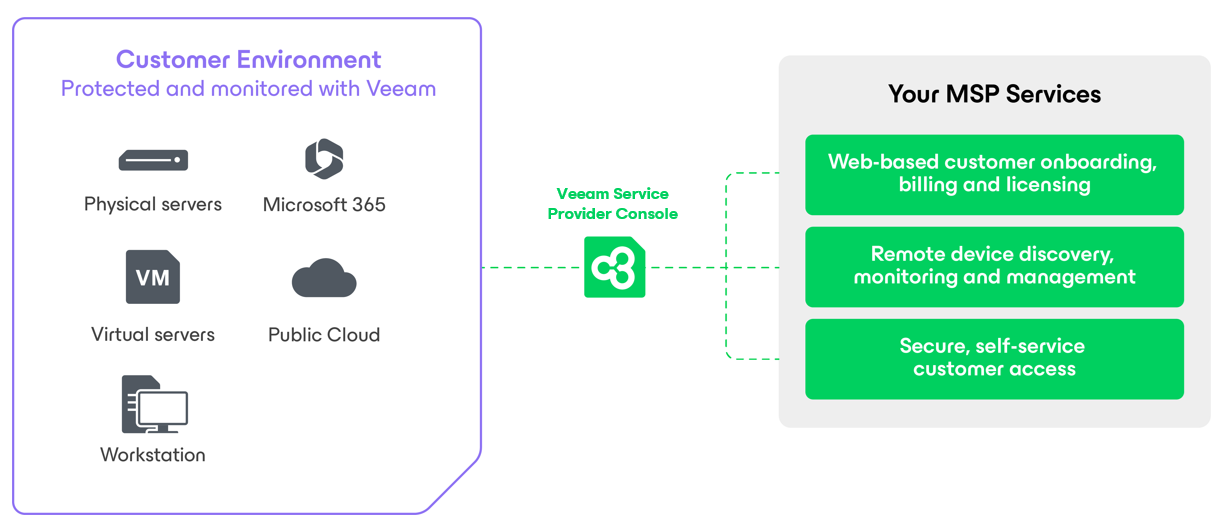
This document is designed to help you set up the core components and provide context for new Veeam service providers. While most of the guide applies to all Veeam service provider offerings, it was written with Managed Service Providers (MSPs) in mind.After following the guide and provisioning the service, there may be additional operational, security, or other tasks required. Therefore, it’s important to review all official documentation to ensure nothing is overlooked.
Veeam offers a wide range of official guides and resources to support your setup. This document is simply meant to help you understand the overall flow and get started.
1. Business & Technical Prerequisites
Business Requirements
- You must be an accepted VCSP partner.
- You need access to the VCSP Pulse portal and the ProPartner portal.
- You should have a rental agreement signed with a Veeam Aggregator.
Technical Requirements
- At least three Windows servers (physical or virtual) on the service provider side (more if you want additional gateways).
- Public IP addresses.
- CA-signed SSL certificates (recommended for security).
- Access to the customer’s Veeam Backup & Replication (VBR) server, or a Windows server where VBR can be installed.
- For agent-based backups, access to the physical or virtual servers you intend to protect.
2. Setting Up the Service Provider Side
Install Veeam Cloud Connect Server
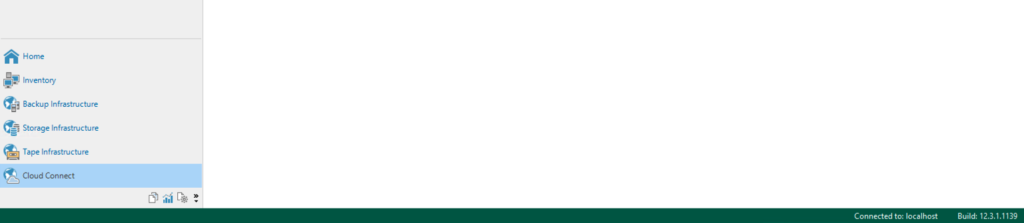
- Deploy a Windows server and install Veeam Backup & Replication with a Cloud Connect license.
- Generate a “Veeam Cloud Connect and Public Cloud” license in Pulse and install it on your Cloud Connect server.
- This enables the Cloud Connect tab in VBR and turns the server into a Cloud Connect server.
Why Cloud Connect?
Cloud Connect allows you to manage multiple VBR servers across tenant networks using a single SSL port, making it easy to offer offsite backup and DR without complex VPNs. It also supports tenant isolation and multi-tenancy.
Install SSL Certificate
- Navigate to the above mentioned cloud connect tab and deploy a certificate.
- Veeam Cloud Connect works with both self-signed and CA-signed certificates, but CA-signed is strongly recommended for security and client trust.
Add Cloud Gateway(s)
- You can use a standalone Windows server as a cloud gateway.
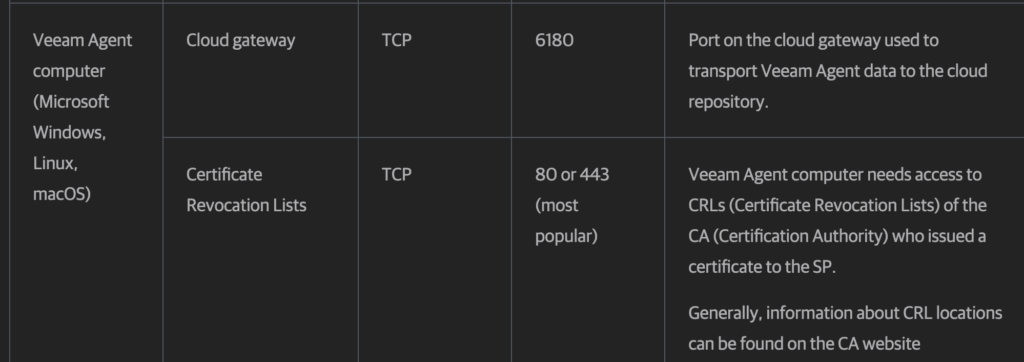
- For redundancy, add multiple gateways. Place gateways in a DMZ with two network interfaces: one public (accepting connections on TCP/UDP 6180), one internal.
- Assign dedicated gateways to specific customers as needed via gateway pools.
- More about cloud gateways
- Port requirements

Install Service Provider Console (VSPC)
- Deploy VSPC following Veeam’s recommended architecture (on-premises or cloud).
- VSPC Deployment guide.
- Connect your Cloud Connect server to VSPC.
- Configure secure access (SSL certificates, enable MFA for admin users).
- Complete the “Getting Started” section under “Configuration” for initial setup.

Connect VSPC to VCSP Pulse
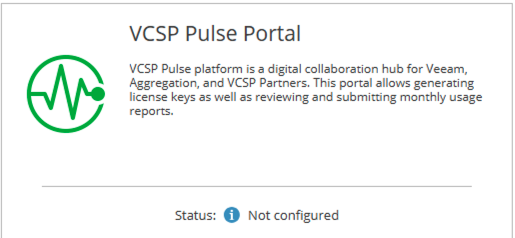
- In VSPC, go to Configuration > Plugin Library and open the VCSP Pulse portal plugin.
- Manage companies and license keys here.
- How-to Guide
Why Connect to Pulse?
- Licenses can be created directly from the VSPC portal and synced to VCSP Pulse, ensuring unique license keys per tenant.
- Automatic license key reporting is recommended and is the default for non-commit partners.
Create Companies
- Create a company account for each customer in VSPC. These accounts will be auto-created in Pulse.
- For customers with their own VBR server, generate a VBR license in the Pulse plugin with the required count.
Company creation and tenant experience have changed in v9/v9.1 of VSPC. Please refer to this blog for more information.
3. Preparing the Customer/Tenant Side
Understanding Licenses
- The Cloud Connect server will have a “Veeam Cloud Connect and Public Cloud” license installed with at least one workload. This license is not consumed but must be reported monthly (even as 0 usage).
- If you manage physical computers directly from the Service Provider Console, you’ll need to install a Veeam Agents license in VSPC, matching the number of agents managed by VSPC.
- If all customers use their own VBR server, just license the VBRs via the Pulse plugin.
Connecting VBR to VSPC
- Add the service provider in the customer’s VBR, which will auto-install the VSPC management agent.
- When entering credentials, use the username without the company name (company name is only used when logging into the VSPC portal).
- Make sure to check the option to allow VBR management by VSPC.

Connecting Agents to VSPC
- Install the VSPC management agent on one server, then use discovery rules (such as Active Directory) to find others.
- Agents can be installed automatically or manually after discovery.
- Create backup policies under Configuration > Backup Policies in VSPC.
- Assign policies to backup agents as needed.
Note:
For advanced features like Scale-Out Backup Repository (SOBR) or backup copies, consider deploying a VBR server on the customer side to centrally manage all agents.
4. License Reporting
A. Enable Automatic License Reporting (Recommended)
- Enroll for automatic reporting in VCSP Pulse (Pulse Settings > Auto-Reporting).
- When generating new licenses, set “Automatic reporting” to On.
- For existing licenses, enable it in the Console’s license management settings.
- Ensure ALK Update (Automatic License Key Update) is enabled on all Veeam servers to keep licenses current.
B. Submit Monthly Usage
- On the first day of each month, VSPC will generate a license usage report.
- This report appears in VCSP Pulse under Monthly Usages > My Actions.
- Review the report, make manual adjustments if needed, and submit.
C. Manual Reporting (if not using automatic reporting)
- Manually enter workload numbers from the VSPC License Usage Report into VCSP Pulse and submit.
5. Billing Your Customers
- Veeam uses a points-based, pay-as-you-go licensing model.
- Each workload (VM, agent, user, etc.) consumes a set number of points per month based on its type and edition.
- Use the License Usage Report in VSPC to determine the number and types of workloads protected per customer.
- Reference the Points Per Unit (PPU) for each workload type, calculate the total, and apply your service markup.
- Generate invoices based on this usage and your pricing structure.