

With V13, Veeam introduces the much awaited High Availability (HA) feature for its appliance. This means you can now configure a standby secondary node that takes over if the primary node goes down
Here’s a quick guide to get HA up and running, based on the beta build:
Pre-Configuration
- Login to the appliance host management console by accessing
https://ApplianceIP:10443. Now under Applications section, submit request to enable HA. Make sure you have the Veeam Universal license applied. Note: For beta you can use the license available along with the beta download. - Security Officer Role
If enabled, you’ll need to log in as the security officer to approve the HA setup. - Repeat on Node 2
Do the same steps on your secondary node. - Reserve a Cluster IP
This IP will be owned by the primary node and taken over by the secondary during failover.
Setting Up HA
Login to the appliance console
Navigate to Managed Servers → Select your VBR server → Setup High Availability.
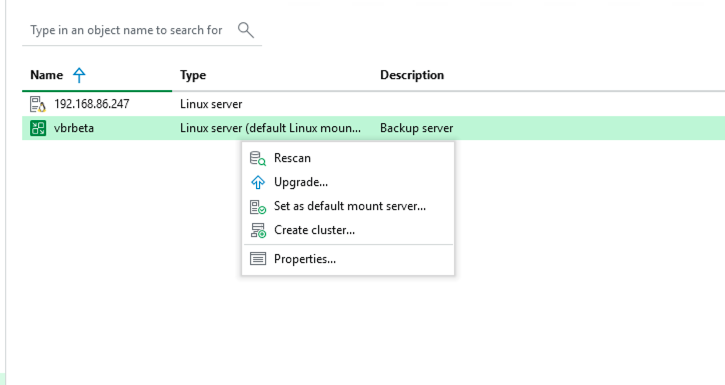
HA Cluster Wizard
- Enter the Cluster IP and FQDN (make sure it resolves correctly).
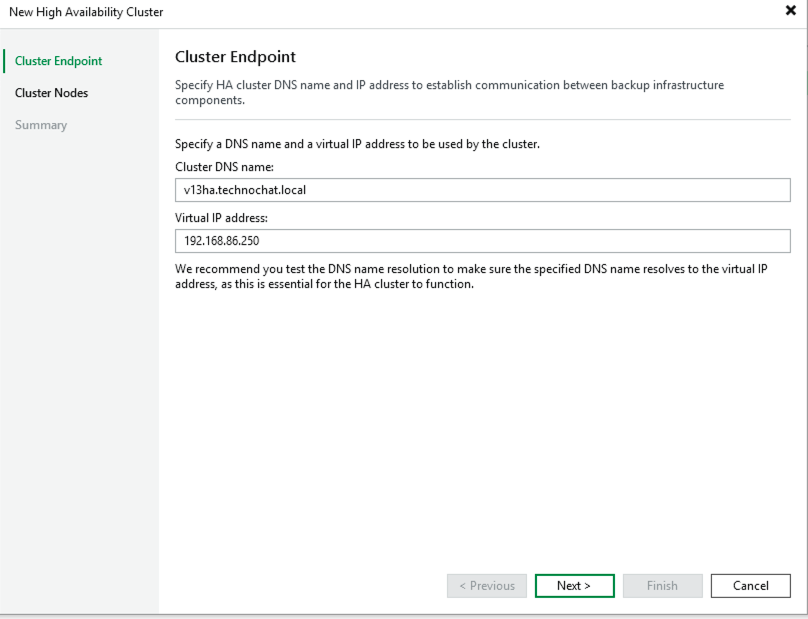
- Add the primary and secondary node IPs, credentials, and finish the wizard.
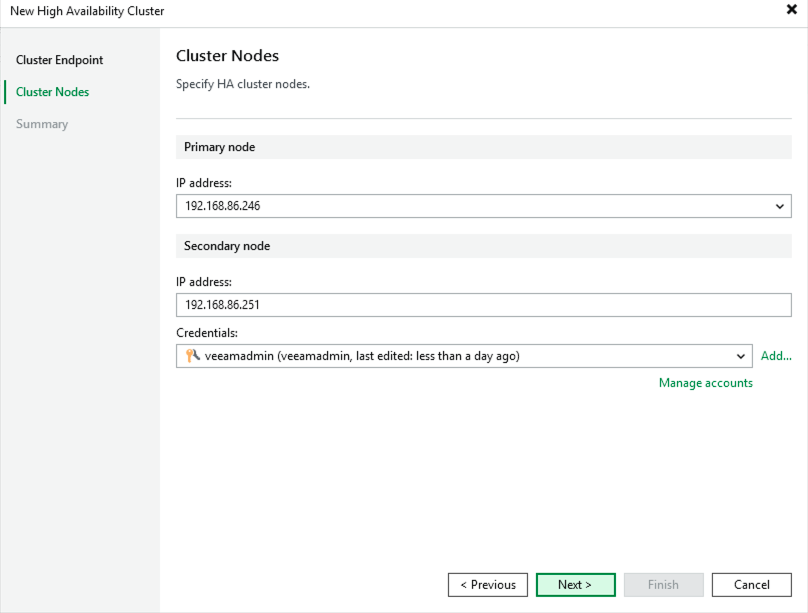
Now you’ve got a two-node cluster with the primary node owning the cluster IP.
Performing Switchover
You can trigger a switchover directly from the VBR primary node.
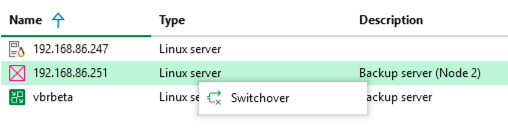
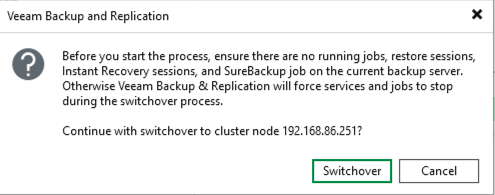
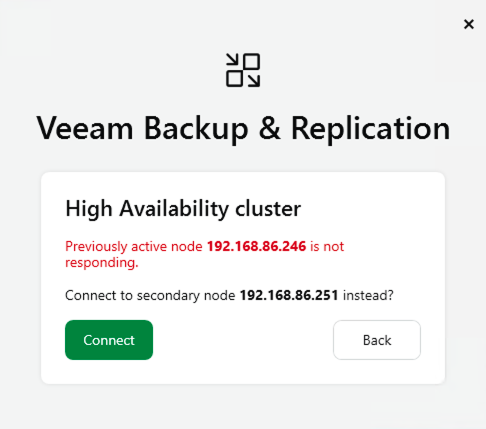
To simulate a failover, I deliberately shut down the primary node and then connected to the cluster IP using the remote console, rather than pointing at a specific node. As soon as I connected, I was greeted with a message indicating that the secondary node had taken over as the active primary. This confirmed that the failover completed successfully and that the HA setup was behaving exactly as expected.
Hope this helps you get HA configured smoothly with VBR. Now onto the second part.
Adding VSA to VeeamONE
In Veeam ONE v13, adding a Veeam Service Account (VSA) is no longer a simple case of clicking “Add Server” and pointing it at your VBR instance. The model has changed quite a bit. With the introduction of stricter security controls, driven largely by DISA STIG requirements and a broader push toward Zero Trust, VSA access is now far more locked down by default.
As a result, the VSA needs to be explicitly and manually enabled before Veeam ONE will allow it to be added. Until that step is done, the server simply won’t be able to be connected to VeeamONE. This is an intentional design change and not a misconfiguration.
The same behavior applies when you are attempting to add Veeam Service Provider Console (VSPC) & and those are the only products that can install agents into the VSA for remote management. If you have deployed Veeam in earlier version, this can easily catch you out, as the workflow looks familiar but the underlying security expectations are different. It’s a small change operationally, but an important one to be aware of when deploying or upgrading v13 environments.
Here’s what happens:
When you log in to the VeeamONE Admin Web UI and go to Configuration → Data Source → Veeam Backup and Replication, the server add will fail with an error.
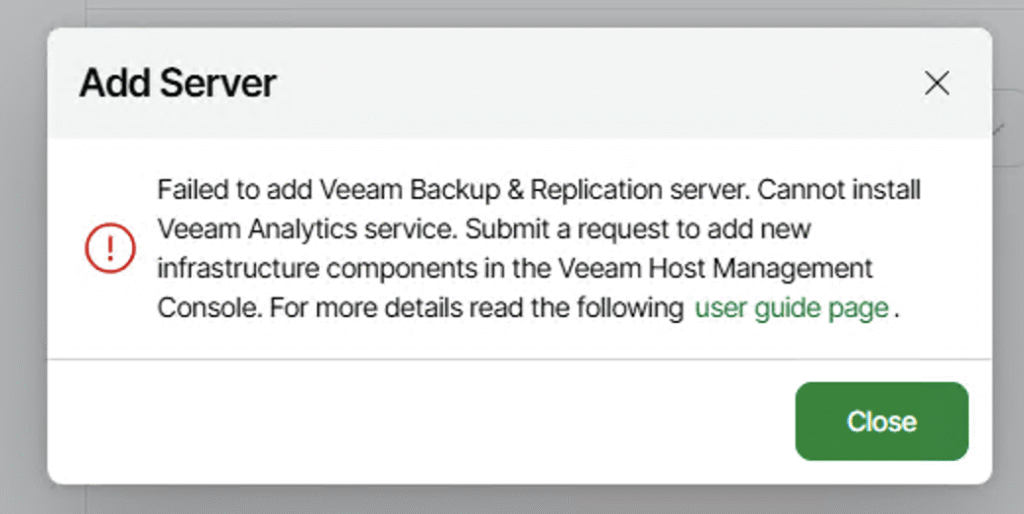
How to Fix It
Log in to the VSA Admin Host Management at https://<IP Address>:10433.
Go to Backup Infrastructure and Submit a request for data collection
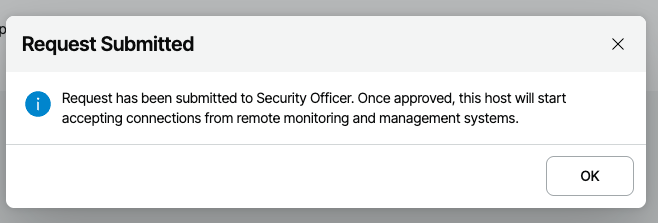
If you have a Security Officer enabled, they’ll need to approve the request.

Once approved, you’ll be able to add the VSA to VeeamONE. Note: The request is only valid for 60 minutes, so don’t wait too long!
HA Specific monitoring with VeeamONE
VeeamONE includes a dedicated set of High Availability specific alarms for Veeam Backup & Replication HA clusters. These alarms can be configured not just to alert, but to trigger automated remediation actions.
One key example is the “Veeam Backup & Replication HA cluster primary node state” alarm.
When the primary node becomes unavailable, this alarm is triggered. By setting its action to automatic failover, Veeam ONE can initiate failover without manual intervention.
This ensures faster recovery and consistent handling of primary node failures.

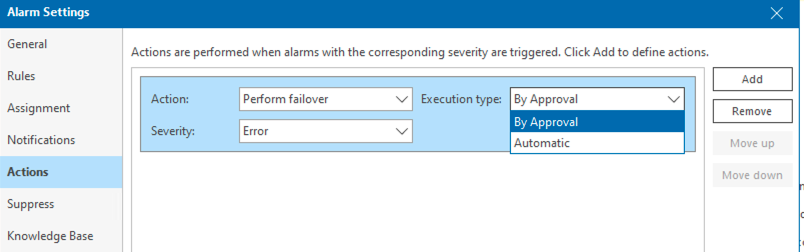
In a production setup where the secondary node resides at a DR site, this becomes even more useful. If the primary node goes down, you can trigger an automated failover to the secondary node. Backup operations can also be initiated immediately from the secondary node if required.This ensures continuity even during a primary site outage.
Under the hood, the entire HA workflow is orchestrated through Patroni replication.
eeam v13 strengthens BCDR not only with built‑in High Availability, but also by making failover an observable and automated capability. By adding VSA to Veeam ONE, HA awareness is extended beyond monitoring into actionable response through HA alarms.