
Veeam Data Platform v13.1 changes how the VDC Vault gets authenticated and connected to the VBR cloud appliance – for both VBAzure and VBAWS. It can now connect to either appliance via a single, federated workflow that happens directly from within Veeam Backup & Replication itself, making the repository immediately available for restores and backup copies.
In this blog, I have tried to cover this new workflow.
I had a request from a partner recently on how to achieve a backup copy from VDC Vault connected to VBAzure. I thought it would be a good time to write a blog post on getting that working, and also to explore the new authentication workflow while I’m at it.
What was available before v13.1
Prior to v13.1, to connect VDC Vault to VBAzure, Veeam only supported authentication via a veeam.com account. Furthermore, to connect it to VBR, you needed to enable shared credentials, which required a support case. For VBAWS, there was no way to connect it to the VDC Vault AWS edition at all. Both of these issues are fixed in v13.1.
v13.1 – Workflow
First things first — the upgrade process for the Veeam Software Appliance was so clean and easy. For someone who’s been using Veeam since v7, not needing to download a full-blown ISO, mount it, and go through the wizard is a genuinely wholesome feeling.
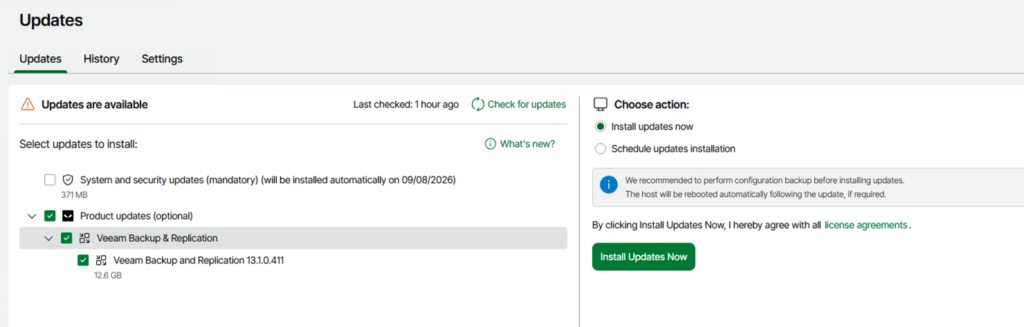
In this blog, we’ll focus on the VBAzure workflow.
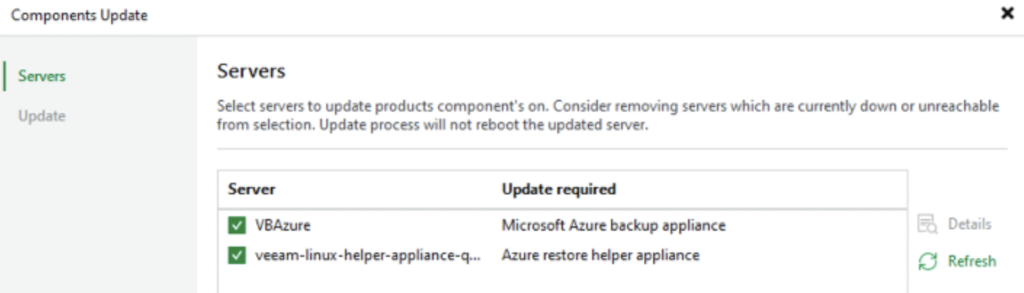
Once VSA/VBR is upgraded, upon opening the Veeam thick client for the first time, you’ll be prompted to upgrade the VBAzure appliance.
Adding External repository
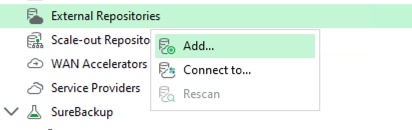
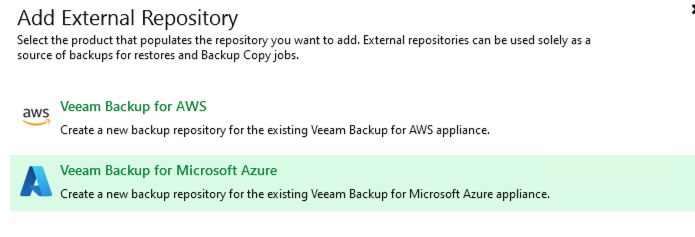
Once VBAzure is upgraded, let’s move to Backup Infrastructure → External Repository. You’ll see an option to either add a new repository or connect to an existing one. In this case, since I already had VDC Vault connected to VBAzure prior to the upgrade, I use the “Connect to” option.
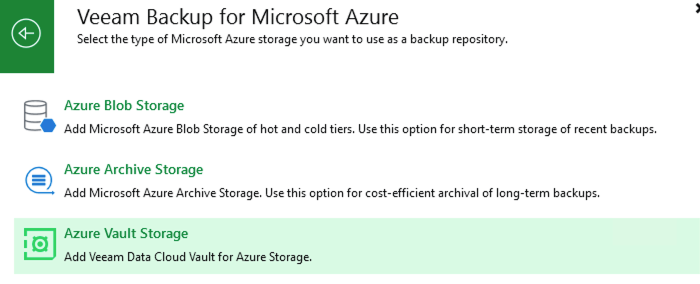
From there, I select Veeam Backup for Microsoft Azure and Veeam Vault storage on the subsequent screens of the wizard.
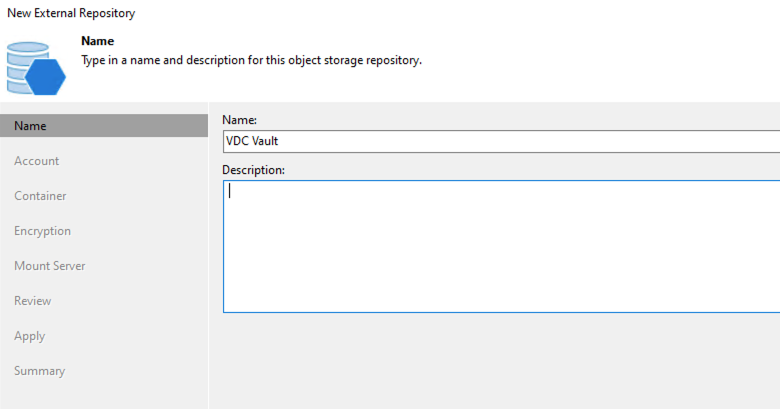
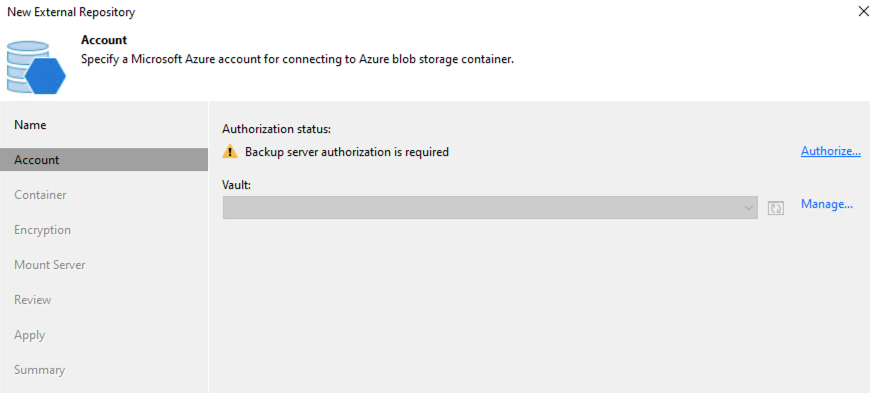
Now key in the Vault name you want to connect to, and authorize the VBR/VSA to the VDC Vault portal. This is a critical step, as this registers the server with the VDC Vault portal, allowing you to assign the server (workload) to the Vault itself. Only the assigned server can connect to that specific vault.
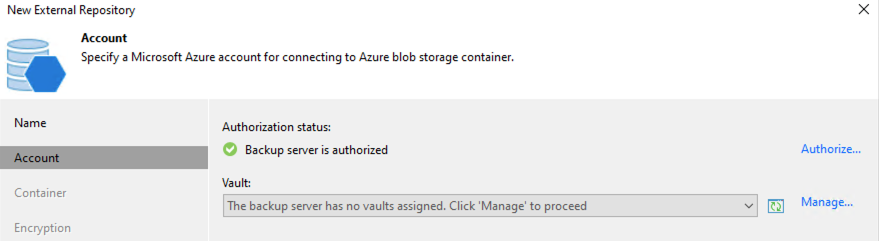
Next up, let’s log in to the VDC portal (cloud.veeam.com) and then navigate to VDC Vault. In this case, since I’m connecting to the VDC Vault that already has my VBAzure backups stored, click on Assignments and assign the VBR server as an authorized server to access this vault. In the screenshot below, you can see that “Total assigned” went from 1 workload to 2 – before this assignment, only VBAzure was allowed to access the vault, and now VSA can access it too.
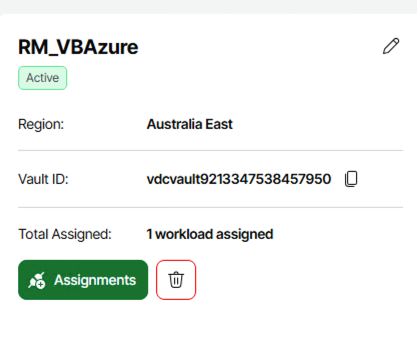

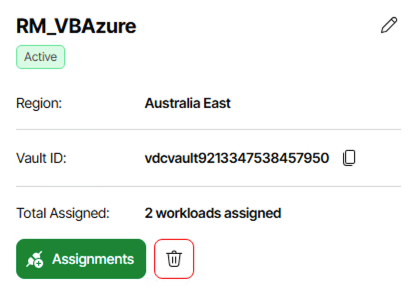
Once this assignment is done, I can go back to the VSA thick client and click refresh next to Vault, and I can see the VDC Vault become available to select.
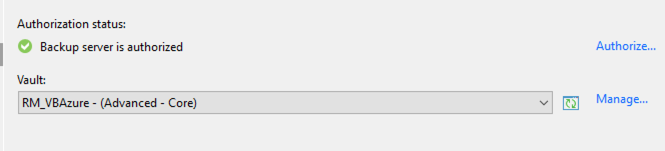
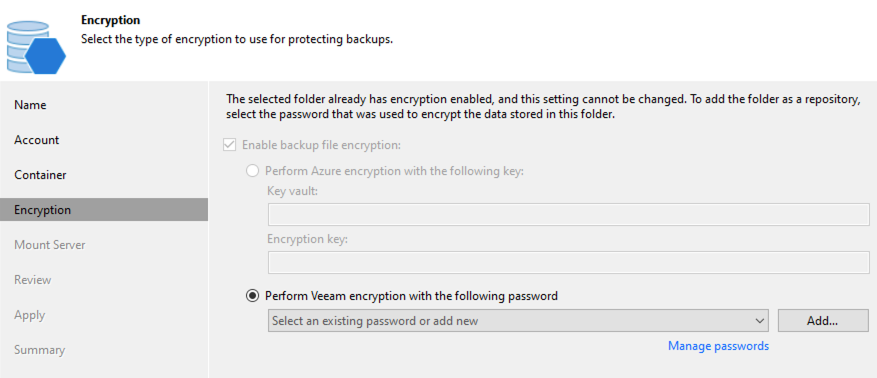
As VDC Vault can only accept encrypted backups, we need to specify the same encryption password again in this VSA – the one I used when VBAzure was wired to the Vault.
Backup copy options:
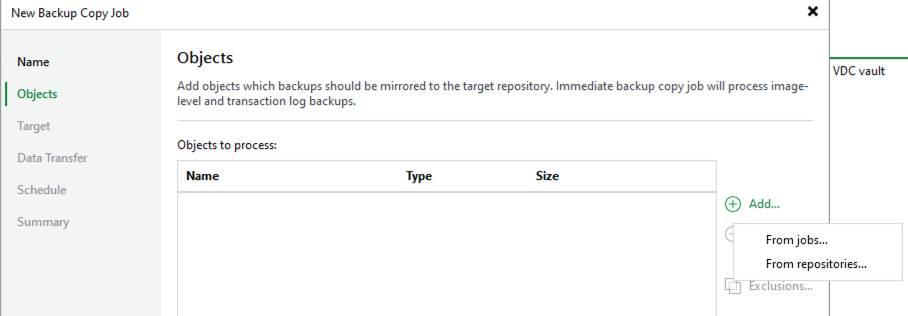
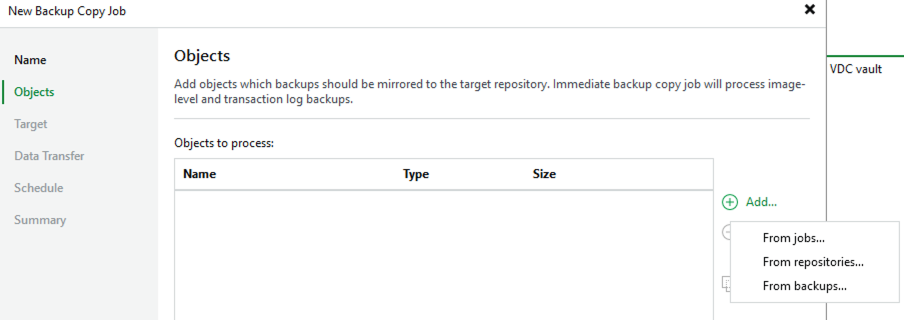
Prior to adding this external repository, the backup copy job creation wizard only had two options: “From jobs” and “From repositories.” Once this external repository is added, we get an additional option called “From backup.”
Takeaway
Veeam Data Platform v13.1 removes much of the complexity around Veeam Data Cloud Vault integration, introducing a unified authentication workflow that makes connecting Vault to VBAzure and VBAWS significantly easier. Once connected, Vault becomes immediately available for restores and backup copies, making it a far more practical part of your data resilience strategy.